Using Rift
The dashboard
rift dash opens a live view of every project Rift has started on this machine, with each of its worktrees. Use it to see which agents are still working, and to start, stop or open any copy.
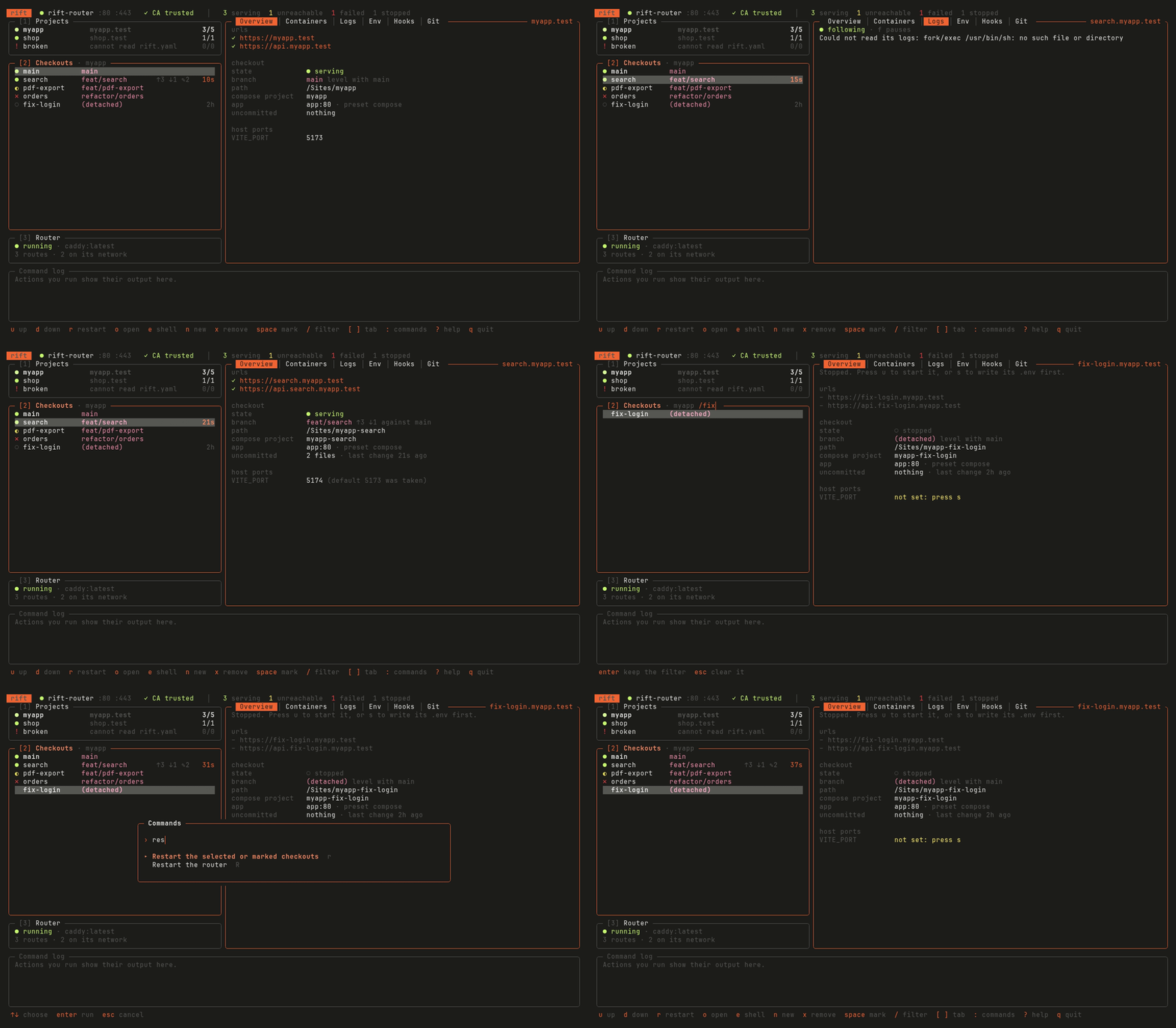
What it shows
For each copy, the dashboard shows:
- whether it is serving,
- its branch, and how far it is ahead of or behind the main branch,
- its uncommitted files, and when a file last changed, so you can tell which agents are still working.
Its tabs show the selected copy's containers, logs, .env values, hooks and recent commits.
Run it from any directory. It opens on the copy you run it in.
Keys
Select a copy with the arrow keys, then act on it:
| Key | Action |
|---|---|
u / d | Start it, or stop it after asking. |
r / s | Restart it, or write its .env and start it. |
space | Mark it, so the actions above apply to every marked copy. |
o / y | Open its URL in the browser, or copy it. |
e | Open a shell in its app container. |
n / x | Create a worktree from a branch, or remove one after asking. |
[ / ] | Switch tabs. |
/ | Filter the copies by name or branch. |
3 | Show the router: its routes, a rift doctor report and its settings. |
: / ? | Find any command by name, or show every key. |
q | Quit. |
Actions and the command log
Actions run in the background, and their output appears in the command log at the bottom of the screen.
Before the certificate authority is trusted
Until the router's certificate authority is trusted, u and s run in the foreground instead, so you can type your system password.
Which projects appear
Rift lists a project once rift up has started it, in ~/.config/rift/projects.yaml. To hide a project, remove its line from that file.
Outside a terminal, such as in a script, rift dash prints the output of rift status instead.